
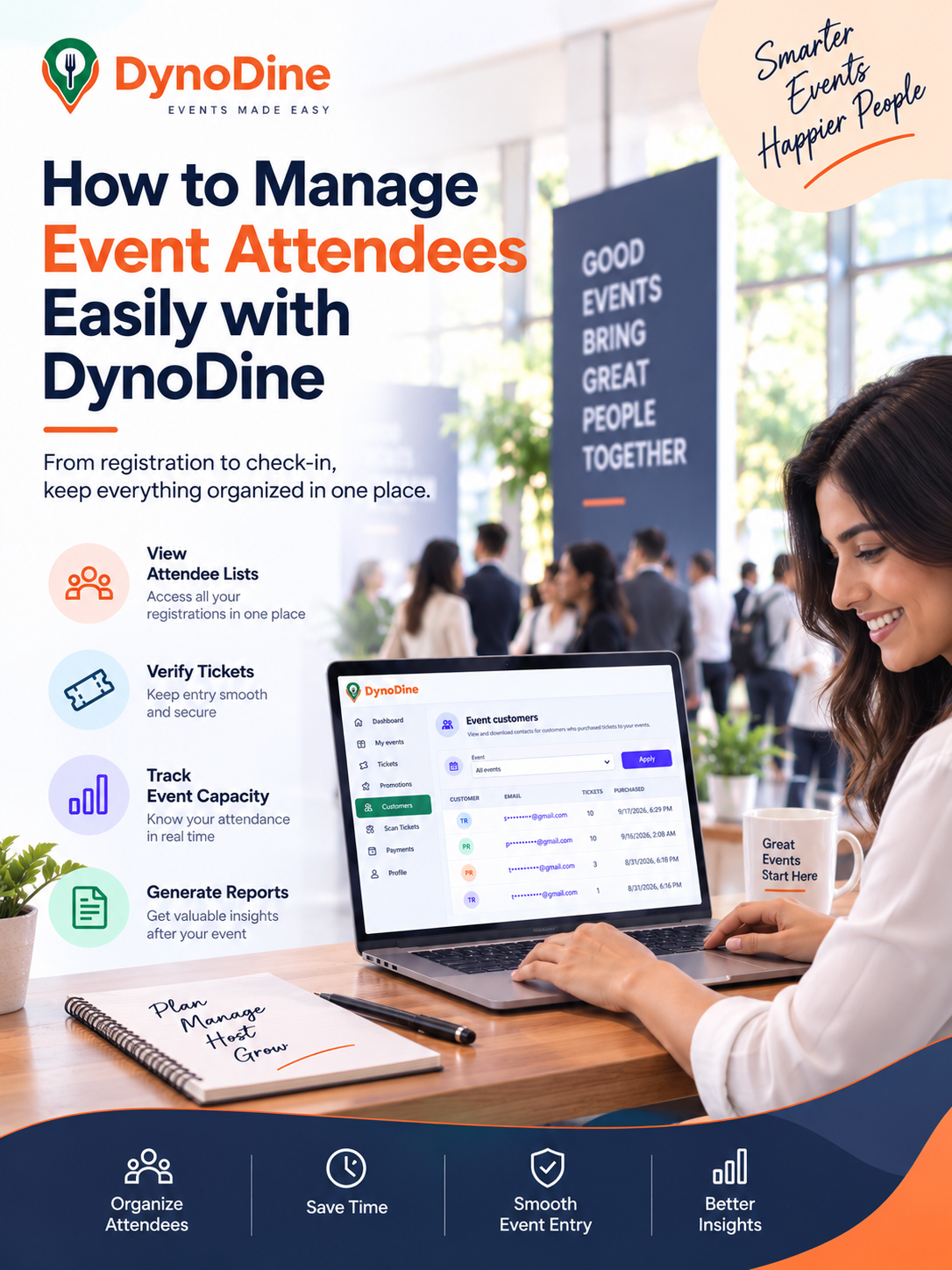
How to Manage Event Attendees Easily with DynoDine
How to Manage Event Attendees
Managing event attendees becomes much easier when all your customer and ticket information is organized in one place. With the DynoDine Organizer Panel, you can view customer details, track ticket purchases, filter attendees by event, download customer records, and manage check-in.
Step 1: Open the Event Customers Section
Go to the Customers section in your DynoDine Organizer Panel.
The Event Customers page allows you to view customers who have purchased tickets for your events.
You can view:
- Customer Name
- Email Address
- Phone Number
- Event Name
- Number of Tickets Purchased
- Purchase Date and Time
This gives you a clear overview of your event customers without maintaining separate records manually.
Step 2: Select the Event You Want to Manage
If you organize multiple events, use the Event dropdown to choose a specific event.
Select the event and click Apply.
The customer list will help you focus on the ticket purchases related to that event, making attendee management more organized.
Step 3: Review Your Guest and Customer Records
The Customer Contacts section provides important information about your ticket buyers.
Use these records to:
- Maintain your guest list
- Review customer contact details
- Check the number of tickets purchased
- Identify the associated event
- Review when tickets were purchased
This keeps important attendee information easily accessible from one place.
Step 4: Track the Number of Tickets Purchased
Check the Tickets column to see how many tickets each customer purchased.
A customer may purchase one ticket or multiple tickets for friends, family, or a group.
Tracking these quantities gives you a better understanding of your expected attendance.
Step 5: Keep Track of Event Capacity
Knowing how many tickets have been purchased helps you prepare for the expected number of attendees.
This can help you plan:
- Venue capacity
- Seating arrangements
- Event staff
- Security
- Food and beverages
- Entry arrangements
Regularly reviewing ticket information can help you stay prepared as your event approaches.
Step 6: Manage Attendee Check-In
When attendees arrive at the venue, use the Scan Tickets option in the DynoDine Organizer Panel.
How check-in works:
1. Open Scan Tickets
2. Click Start Camera
3. Point the device camera at the attendee's QR code
4. Scan and verify the ticket
5. Complete the attendee check-in
This helps make ticket verification and event entry faster and more organized.
Step 7: Download Customer Information
Need your customer records outside DynoDine?
Click Download CSV to export the available customer information.
You can use the exported data for:
- Guest-list preparation
- Internal event records
- Registration review
- Event operations
- Post-event reporting
Make sure customer information is handled securely and used appropriately.
Step 8: Review Attendee Data After the Event
Your attendee information can continue to be useful after the event.
Review your event records to better understand:
- Ticket purchases
- Customer registrations
- Attendance records
- Event performance
- Registration patterns
These insights can support better planning for your future events.
Why Manage Event Attendees with DynoDine?
👥 Organized Customer Records
Keep customer and ticket information conveniently available in the organizer panel.
🎟️ Easy Ticket Management
See how many tickets customers purchased and which event they purchased them for.
📊 Better Event Planning
Use ticket information to understand expected attendance and prepare accordingly.
📱 Faster Check-In
Scan QR code tickets through the organizer panel for a smoother entry process.
📥 Downloadable Records
Export customer information as a CSV whenever you need it for event operations or reporting.
Make Attendee Management Easier
From ticket purchases and customer records to QR code check-in, DynoDine gives organizers a simple way to manage important attendee information throughout the event journey.
Keeping everything organized in one place can help you prepare better, manage entry efficiently, and create a smoother experience for your attendees.
Want to know the complete end-to-end process of how to sell tickets online? Click here for the Complete Step-by-Step Guide.